Edit Multiple Files in VIM

Notes from video:

#
# Notes for my YouTube video => https://youtu.be/XTgNXp8PD3c
#

# Display Buffer List
:buffers
:ls

# open and edit another file w/in VIM
# AND append [FILENAME] to Buffer List
:edit [FILENAME] 

# Add [FILENAME] to the Buffer List from w/ in 
# a modified buffer
:badd [FILENAME]

# Navigating the buffer list
:bprevious
:bnext
:buffer [NUM] # jump directly to Buffer number [NUM]
:buffer! [NUM] # override warning and hide buffer

:pwd  # P(rint) W(orking) D(irectory)


# While in Normal Mode (aka Command Mode)
# Press "2", then "Control-g"
2 + Ctrl-g  
# Hit "Escape" key to enter Normal Mode

# Display Argument List
:args

# Navigate Argument List
:previous
:next

# Miscellaneous
:quit
:quit!
:write

You can also get the most current version of the above via git:

git clone https://gist.github.com/ec9f971671b0a493b9bbc4a92e7fdeb1.git vimBuffers
cd vimBuffers
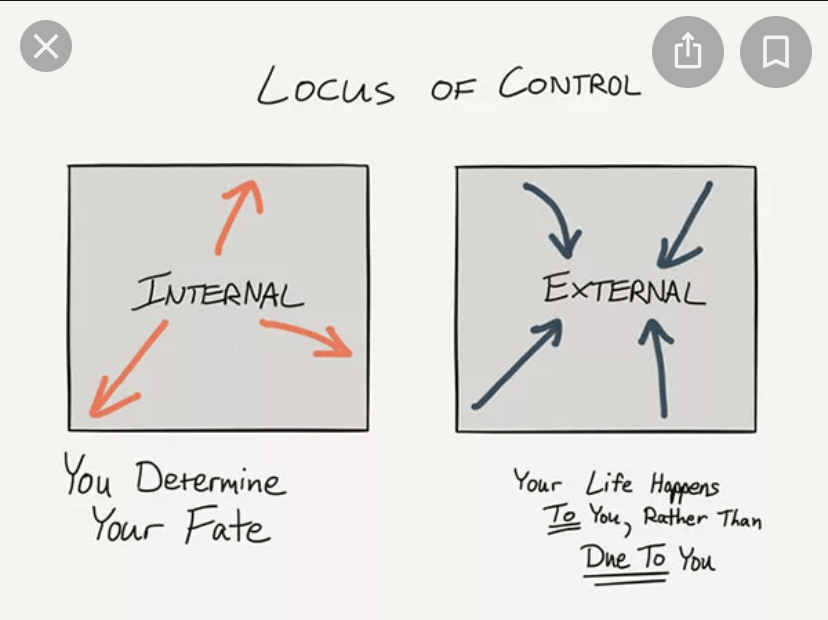
How To Learn (Linux) Better ๐Ÿง 

The best way to learn new information is to make it useful.

UTILITY is key! ๐Ÿ”‘

For example, VIM has a lot of commands for splitting windows, creating tabs, managing buffers, etc.

I struggle to โ€œmake this, make senseโ€.

===

Finally โ˜๏ธ, once I installed a VIM plugin for git – fugitive – all the shortcuts, commands, and concepts in VIM really came alive and had actual meaning.

Trying to learn a new feature in VIM, TMUX, etcโ€ฆ

Make it useful ๐Ÿ˜ƒ

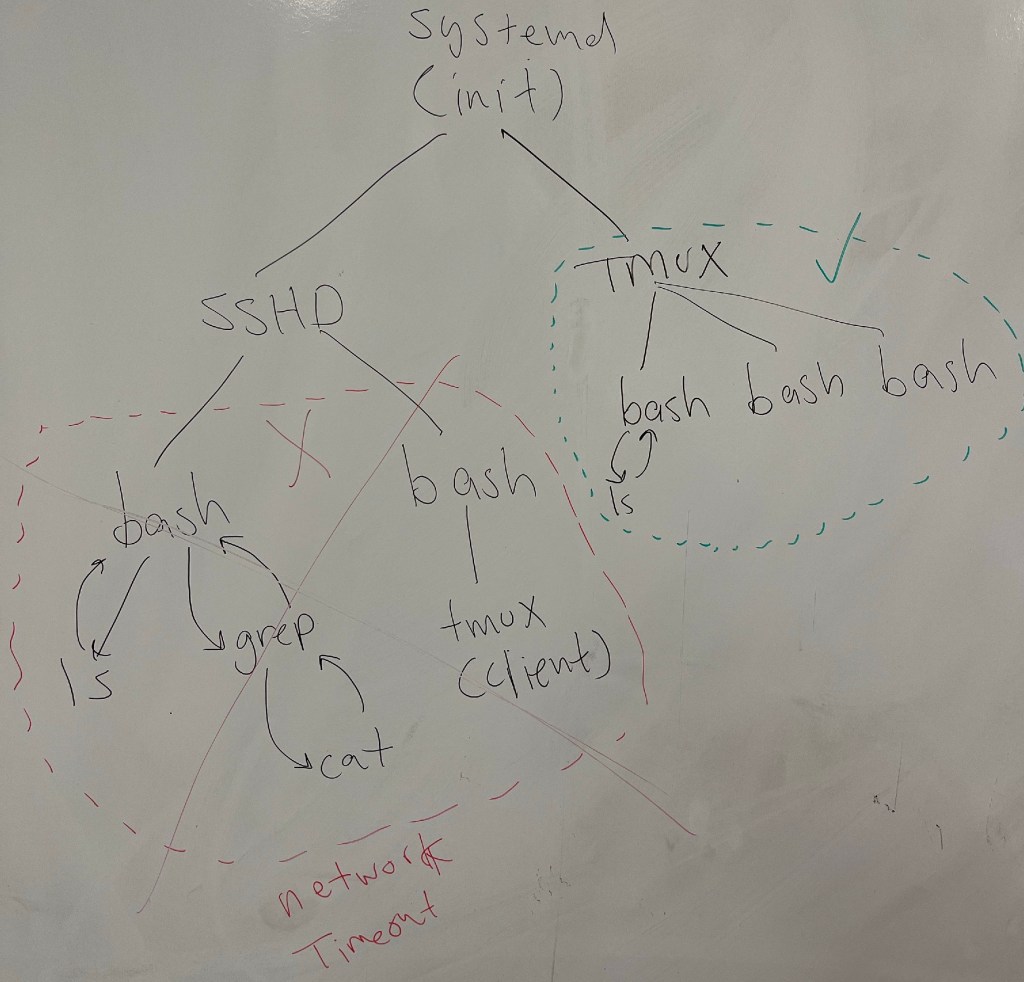
TMUX Architecture

I’m developing more YouTube videos and one of them is: Introduction to TMUX

Here’s what I have so far:

A couple of things to note:

  1. Anything under the SSHD daemon (red dashed-square) is vulnerable to:
    • network interruptions and/or
    • session timeouts.
    • When this happens, ALL OF YOUR SHELLS and work are immediately terminated! โ˜ ๏ธ
  2. Anything under the TMUX Server (green dashed-square) is safe and will continue to run ๐Ÿ˜‰
    • And โ˜๏ธyou can reconnect to those shells and pick up like nothing ever happened.

How To Implement Keychain ๐Ÿ”

The Problem

If you are sick of re-entering your SSH passphrase per login shell ๐Ÿ˜’…

eval $(ssh-agent -s )
ssh-add ~/.ssh/id_rsa
# re-enter passphrase
SSH-Agent:

Keychain will allow you to enter your SSH passphrase per system reboot, ๐Ÿ˜ฒ

How???

Keychain will automatically re-use your pre-existing ssh-agent process and have instant access to any pre-loaded keys and passphrases.

Keychain:

Summary of Steps

Below are the exact steps I took in the Keychain playlist.

You may have to adjust a few parameters to your environment but the Linux commands should be the same.

# Generate your SSH keypair (Public/Private)
# Public Key ends with a *.pub
# Private Key has no extension
ssh-keygen

# Copy Public Key to host(s)
ssh-copy-id -i /home/user1/.ssh/id_rsas.pub user1@remote1

# Test Private Key
ssh -i /home/user1/.ssh/id_rsa user1@remote1

#############################
#
# Legacy Method: NO KEYCHAIN 
#
#############################
eval $(ssh-agent -s )
ssh-add /home/user1/.ssh/id_rsa
# View loaded keys
ssh-add -l
# Test "agent process"
ssh -i /home/user1/.ssh/id_rsa user1@remote1

#############################
#
# NEW Method: KEYCHAIN! ๐Ÿ™‚
#
#############################
# Install keychain
sudo apt-get install keychain

#####################
# UPDATE: 01/12/2026
# Add the following to "~/.bashrc" and keychain will look
# for and use your pre-existing ssh-agent every time.
#####################
eval `keychain --eval --agents ssh /home/user1/.ssh/id_rsa`

# Test keychain
ssh user1@remote1


Keychain Concepts

Here I explain the concepts that make up ssh key authentication and keychain:


Demonstration

Here, I show you how to actually implement keychain: