Advanced Hot Keys (Bash)

Command Summary

Bash’s default is to use these Emacs-style commands:

###################
# 
# Control Modifier
#
###################
# Move up your command history
ctrl-p
# Move down your command history
ctrl-n
# Move back one character at a time
ctrl-b
# Move forward one character at a time
ctrl-f
# Front of the line
ctrl-a
# End of the line
ctrl-e
# Delete one character at a time
ctrl-d
# Backspace one character at a time
ctrl-h
# Delete everything after the cursor, including underneath (inclusive)
ctrl-k
# To delete everything before the cursor (exclusive)
ctrl-u
###############
#
# Alt Modifier
#
###############
# Move back one word at a time
alt-b
# Move forward one word at a time
alt-f
# Delete a word at a time
alt-d
# Backspace one word at a time
ctrl-w

Video Demo:

Supercharge your bash prompt w/ git info

Here’s the source code for the bash function and PS1 variable:

# Bash function
my_git() {
GIT_BRANCH=$(git branch --all 2> /dev/null | egrep "^\*" | cut -d ' ' -f 2 )
if [[ -z "$GIT_BRANCH" ]]; then
       echo "" #not in a Git repo
else
    if [ $(git status | egrep "^Untracked" -c) -ge 1 ]; then
        #ANSI code: Red
        echo -e "(\033[0;31m$GIT_BRANCH\033[0m) "
    elif  [ $(git status | egrep "^Changes" -c) -ge 1 ]; then
        #ANSI code: Yellow
        echo -e "(\033[0;33m$GIT_BRANCH\033[0m) "
    else
        #ANSI code: Green
        echo -e "(\033[0;32m$GIT_BRANCH\033[0m) "
    fi
fi
}
# PS1 variable:
export PS1="\[\e]0;\u@\h: \w\a\]\u@\h:\w$ \$(my_git)"

Full Demo:

How To Backup Your Git Repository To GitHub

Command Summary

List of commands from video demo:

# view current state of your repo
git status 

# initialize a brand new repo
git init

# set global setting
git config --global user.name "Ray"
git config --global user.email "ray@github.com"

# view global settings
git config --global user.name
git config --global user.email

# stage all files
git add *

# quickly commit staged files
git commit -m "<Commit Message>"

# view all of your commits
git log

# view all remote branches
# you are tracking
git remote -v

# add a remote branch using HTTPS protocol
git remote add origin https://github.com/linuxblogger150/scripts.git

# push TO remote repo 'origin', our
# remote branch 'master'
git push origin master

# create keypair 
# '/home/rlc/.ssh/github' and 
# '/home/rlc/.ssh/github.pub'
ssh-keygen

# cat public key
cat /home/rlc/.ssh/github.pub

# test SSH authentication to 
# Github.com
ssh -T git@github.com

# view ALL loaded keys
ssh-add -l

# spawn a new "agent process"
eval "$(ssh-agent -s)"

# add our custom key
ssh-add ~/.ssh/github

# UPDATE origin's URL to SSH
git remote set-url origin git@github.com:linuxblogger150/scripts.git


Video Demo

Delegated Authentication

How do you know if an application is using Delegated Authentication (AuthN):

  • OIDC
  • SAML
  • Etc.

Simple ☝️

Ask yourself this:

WHO am I presenting my login credentials πŸ”‘ to?

The application itself OR an Identity Service Provider (IdP)?

Examples of an IdP: Google, Facebook, Apple, Okta, etc.


Another hint it’s Delegated AuthN:

Your web browser (User Agent) gets redirected to an IdP for authentication..

THEN, the web browser gets redirected back to the original application.

What is Epoch Time?πŸ€”

Epoch time is an absolute Unix time ⏰scale.

It’s the number of seconds since:

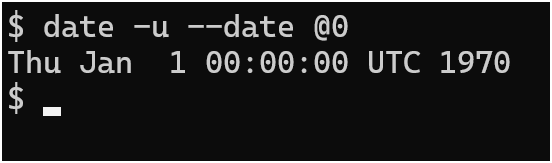
Thu, Jan 1, 00:00:00 (Midnight), UTC, 1970

The Big Bang 🌌 for Unix time if you will 🀭


Here’s how to get:

  • A Regular Timestamp
date
  • Epoch format
date +%s
  • Convert Epoch time to “regular” UTC time:
date -u --date @1748991936

And now me nerding πŸ€“ out..

  • Epoch time is a discrete number
  • It’s analogous to the Kelvin temperature scale 🌑️
  • Unlike Kelvin, you can reach zero πŸ˜‰
date -u --date @0

One – of many – places Epoch timestamps show up is in your Linux audit log:

Convert Any Man Page to PDF πŸ“„

Here’s a quick way to convert any man page into a PDF document for easier viewing, searching, and sharing:

# install necessary package
sudo apt-get install ghostscript

# script to convert a man page into a PDF
man -t tmux | ps2pdf - tmux.pdf

After you create the PDF document, use your PDF viewer of choice.


I’m using Windows Subsystem for Linux (WSL), so I call Adobe Acrobat directly to open the PDF:

/mnt/c/Program\ Files/Adobe/Acrobat\ DC/Acrobat/Acrobat.exe  tmux.pdf


But I also created a symbolic link to Acrobat.exe, then called it that way:

# create symbolic link 'adobe' to 'Acrobat.exe'
 ln -s /mnt/c/Program\ Files/Adobe/Acrobat\ DC/Acrobat/Acrobat.exe /bin/adobe

# view 'tmux.pdf'
adobe tmux.pdf

Demo

Backup Your Git Repository: Lazy Man Method

Intro

You don’t need to learn or use Github for “simple” Git repository backups 😎

This method only backs up the repository itself, it is not a valid Disaster Recovery Strategy.

If the folder you are backing up to is on the same disk and your original repo, and the disk itself fails…you’re still up a creek without a paddle.

If you are trying to implement Disaster Recovery for your repo, make the sure the folder/volume/mount-point/whatever you are backing up to, is itself, being backed up “offline”.

“Offline” meaning a separate disk/thumb drive/Dropbox/whatever.. 😁

However, this method is great for quickly backing up your repo if you want to experiment and test git techniques.

It’s always wise to do a quick backup before you put on the lab coat:

Image Credit: https://www.carlroth.com/com/en/protective-gowns/protective-gowns-kimtech-science-a7-lab-coat/p/2146.1

Solution

Here are the steps I took to do a local backup of my git repository:

# cd to the folder of your Git Repo
mkdir /tmp/bashScripts
cp -r .git/ /tmp/bashScripts
cd /tmp/bashScripts
git restore *

Full Demo